3 Reasons Your App Keeps Getting Rejected (& How to Fix Them Before You Resubmit)
You finished building your app, hit submit, and made yourself a celebratory coffee. A few days later, the verdict comes back: rejected.
Welcome to a very big club. Some estimates put first-time App Store rejection rates as high as 30 to 40%, and Google Play isn't much friendlier. Here's the good news, though: almost every rejection traces back to one of three fixable things, and none of them mean your app idea is bad. Apple and Google's reviewers aren't judging your taste, they're running a checklist, and most Makers trip over the same three items on it, over and over.
Let's break down what those three things are & how to stop them from happening again.
1. Missing Screenshots or the Wrong Sizes
This is the most boring way to get rejected, which is exactly why it's so common. Both app stores validate your screenshot dimensions before a human ever lays eyes on your app, so if the pixels are off, you don't even make it to review. You just bounce, straight back to your inbox.
Here's what each store actually wants right now:
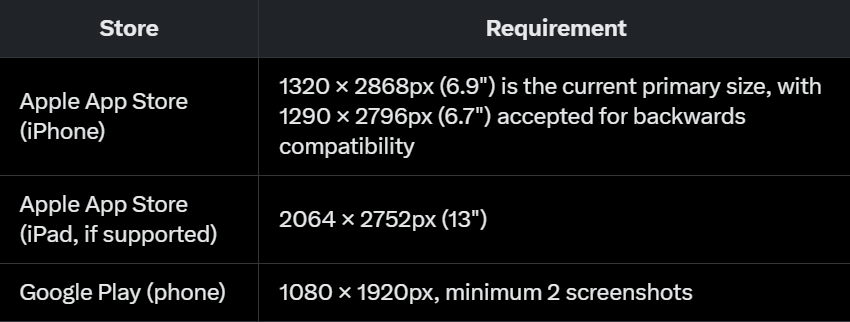
A pixel or two off doesn't round up in your favor. Apple's validator checks exact dimensions, Google Play enforces its own strict range for aspect ratio and file size, and neither one cares that your export "looked right" in your design tool. Export at the exact size the store you're submitting to actually requires, every single time, and don't reuse an old export once you've redesigned a screen.
There's a second, sneakier version of this same problem: Apple's Guideline 2.3.3 requires screenshots to show your app actually in use, not a splash screen, not a login page, not pure marketing art. If your first screenshot is just your logo floating on a gradient, that's a rejection waiting to happen too.
2. A Privacy Policy That's Too Vague
Both stores require a working, accurate privacy policy link before they'll publish anything, and most Makers already know that much. Where people trip up is how vague is too vague.
Reviewers, along with Google's automated checks, see hundreds of privacy policies a day. They can spot a generic, copy-pasted template on sight. A policy that just says "we may collect personal information," without saying what data, why, or who it gets shared with, reads as a red flag rather than a formality.
Google Play adds one more trap on top of that: the Data Safety form you fill out in Play Console has to match your actual privacy policy, in substance, not just in spirit. Say your form claims you collect location data but your policy never mentions it, or the other way around, and that mismatch alone is often enough to get your app flagged.
Write a privacy policy that actually describes what your app does with data, in plain language a normal person could follow. Then make sure it's reachable from two places: your store listing, and somewhere inside the app itself, usually Settings.
3. Metadata That Doesn't Match What Your App Actually Does
This is the rejection that stings the most, because it's not about your app being broken. It's about your description of your app no longer matching the app itself.
Apple's Guideline 2.3 (Accurate Metadata) requires your description, screenshots, and previews to reflect your app's actual core experience, and to stay current every time you ship an update. In practice, that means a feature your listing mentions but reviewers can't find, screenshots that show a UI you redesigned two versions ago, or a promise you quietly dropped without updating the copy that describes it.
None of that is complicated to fix. It's just easy to forget once you're past launch and focused on the next thing. The habit that actually works: before every submission, read your own listing the way a stranger would, and check that every feature it mentions is something a reviewer could find and use inside of a minute.
How Adalo Publishing Studio Handles All 3?
We built Adalo Publishing Studio after watching Makers get stuck on these issues, right at the finish line after weeks of real app-building work already behind them. It handles each one directly, from one place.
For screenshots: Capture straight from your app's live share link or upload your own images if you built elsewhere, then style them with one of 8 templates and export at the exact size each store requires. No measuring, no guessing.
For your privacy policy: Generate a real Privacy Policy and Terms of Service based on what your app actually does, ready to publish and link straight from your listing.
For metadata: Get pre-filled App Store Connect and Google Play Console fields (app name, subtitle, keywords, descriptions, age rating, Data Safety answers) pulled straight from your app, with a copy button on every field, so what you paste into the store portal actually matches what you shipped.
It's free to design. You only pay to export or to use the AI features, and it comes included at no extra cost with any Adalo paid plan.
Frequently Asked Questions
Do I need Photoshop or Figma to use Adalo Studio?
No. Templates, frames, fonts, exports, and document generation all happen right in the browser. If you can paste a URL, you can build a store-ready listing.
Can I use Adalo Studio if my app wasn't built in Adalo?
Yes. Upload your own screenshots instead of pulling from an app link, and the framing and export tools work the same way, regardless of what your app was built in.
Will Adalo Studio save my progress if I close the tab?
Yes. Screenshots auto-save as you go and any document you generate saves the moment it's created.
Ready to stop guessing at what the App Store and Google Play actually want?
Try Adalo Publishing Studio, free to design.